element14 Community
element14 Community
    Register Log In
  • Site
  • Search
  • Log In Register
  • Community Hub
    Community Hub
    • What's New on element14
    • Feedback and Support
    • Benefits of Membership
    • Personal Blogs
    • Members Area
    • Achievement Levels
  • Learn
    Learn
    • Ask an Expert
    • eBooks
    • element14 presents
    • Learning Center
    • Tech Spotlight
    • STEM Academy
    • Webinars, Training and Events
    • Learning Groups
  • Technologies
    Technologies
    • 3D Printing
    • FPGA
    • Industrial Automation
    • Internet of Things
    • Power & Energy
    • Sensors
    • Technology Groups
  • Challenges & Projects
    Challenges & Projects
    • Design Challenges
    • element14 presents Projects
    • Project14
    • Arduino Projects
    • Raspberry Pi Projects
    • Project Groups
  • Products
    Products
    • Arduino
    • Avnet & Tria Boards Community
    • Dev Tools
    • Manufacturers
    • Multicomp Pro
    • Product Groups
    • Raspberry Pi
    • RoadTests & Reviews
  • About Us
    About the element14 Community
  • Store
    Store
    • Visit Your Store
    • Choose another store...
      • Europe
      •  Austria (German)
      •  Belgium (Dutch, French)
      •  Bulgaria (Bulgarian)
      •  Czech Republic (Czech)
      •  Denmark (Danish)
      •  Estonia (Estonian)
      •  Finland (Finnish)
      •  France (French)
      •  Germany (German)
      •  Hungary (Hungarian)
      •  Ireland
      •  Israel
      •  Italy (Italian)
      •  Latvia (Latvian)
      •  
      •  Lithuania (Lithuanian)
      •  Netherlands (Dutch)
      •  Norway (Norwegian)
      •  Poland (Polish)
      •  Portugal (Portuguese)
      •  Romania (Romanian)
      •  Russia (Russian)
      •  Slovakia (Slovak)
      •  Slovenia (Slovenian)
      •  Spain (Spanish)
      •  Sweden (Swedish)
      •  Switzerland(German, French)
      •  Turkey (Turkish)
      •  United Kingdom
      • Asia Pacific
      •  Australia
      •  China
      •  Hong Kong
      •  India
      •  Japan
      •  Korea (Korean)
      •  Malaysia
      •  New Zealand
      •  Philippines
      •  Singapore
      •  Taiwan
      •  Thailand (Thai)
      •  Vietnam
      • Americas
      •  Brazil (Portuguese)
      •  Canada
      •  Mexico (Spanish)
      •  United States
      Can't find the country/region you're looking for? Visit our export site or find a local distributor.
  • Translate
  • Profile
  • Settings
RoadTests & Reviews
  • Products
  • More
RoadTests & Reviews
Review Blogs HARTING MICA: Make a Safe(r) MQTT Container with Certificate and TLS/SSL
  • Blogs
  • RoadTest Forum
  • Documents
  • RoadTests
  • Reviews
  • Polls
  • Files
  • Members
  • Sub-Groups
  • More
  • Cancel
  • New
Join RoadTests & Reviews to participate - click to join for free!
  • Share
  • More
  • Cancel
  • Author Author: Jan Cumps
  • Date Created: 28 Apr 2019 10:51 PM Date Created
  • Views 2513 views
  • Likes 10 likes
  • Comments 9 comments
Related
Recommended
  • debian
  • iiot
  • linux safe
  • mqtt
  • mica
  • harting
  • ssh
  • ssl
  • tsl
  • iot
  • iiot4

HARTING MICA: Make a Safe(r) MQTT Container with Certificate and TLS/SSL

Jan Cumps
Jan Cumps
28 Apr 2019

I'm road testing the Harting MICA Complete IIoT Starter Kit.

It comes with a MQTT Broker Container. It's the heart of most examples available for the MICA.

It's installed out of the box on my MICA. But: it is an open service. Everyone that can IP the network can send and get messages (and trigger hardware).

I'm not angry. I'm disappointed image. It's 2019.


I have two choices - securing the one that's provided by Harting or creating a certificate-protected one from scratch.

I chose option two. In this post I show how I created a more secure MQTT broker, starting from an empty Linux container.


image

I'm using the Linux Debian Stretch Container here - a reasonable lightweight yet complete MICA option to deploy Linux solutions.


Update December 6 2020: version 2.5 of the MQTT container can be configured for secure access.

The blog is still useful if you want to run your own, but the MICA team has now provided a better container that allows you to set up server certificates from the management console.


Setting up the MQTT Broker


If you don't know how to create a new Linux container on the MICA, check this post.

It explains how to create one, and how to connect to it via SSH (PuTTy).


Step 1 is to deploy a fresh Debian Stretch Container on the MICA.

Name: MQTTRoadtest

At start time, the size of this container is:

image

At the end of this post, when we've added SSL and MQTT support, let's check what the total deploy size of the container is.

After starting the container, I used PuTTY to log on and immediately changed the password by executing the passwd command.

In a later exercise, I may create a dedicated non-root user to run the service.
I'll need to study some more to see what it takes to get the service running under a dedicated account.


Then I followed a mix of these three web pages to get everything set up. All the steps are documented in this post.

https://obrienlabs.net/how-to-setup-your-own-mqtt-broker/

https://dzone.com/articles/mqtt-security-securing-a-mosquitto-server

Configuring the MQTT Publish and Subscribe Nodes in Node-Red

You will find that some parts of this post are literal instructions and commands from the pages above. I hope that by referencing them here I give them the right credit.

There's no full overlap with them. To get only secure connections working and reject insecure ones (except from localhost), you need a combination of steps from all three.


Step 2, let's install our MQTT server.

(in my network I have to disable the proxy to make apt work)

cd /etc/apt/apt.conf.d
mv 99proxy 99proxy.bak


Install Mosquitto:

apt update
apt-get install mosquitto mosquitto-clients


test the installation without security:

service mosquitto start


At this moment, we have a working MQTT service with similar security settings as the standard one.


Step 3, you can test if the MQTT server has basic functionality.

Here, I'm doing that with MQTT Lens:


image


If you change the server name to MQTTRoadtest in the CISSGateway, Node Red and GPIO examples, things will also work with the new service because our server is unsecured.

From now on, we'll add security. The examples will not work with the service anymore.

You'll be able to talk to it from your own code though, and from Node Red. But things will be closed for anyone who does not have a correct certificate.


Securing the MQTT Broker


Time to stop the service again.:

service mosquitto stop


Step 1, we create all the keys and certificates


Get openssl. We'll need it to generate the certificates and keys.

apt-get install openssl


Make a directory for certificates, etc ...

mkdir ~/mosquittossl
cd ~/mosquittossl


Create a 2048-bit key called mosq-ca.key

openssl genrsa -out mosq-ca.key 2048

image


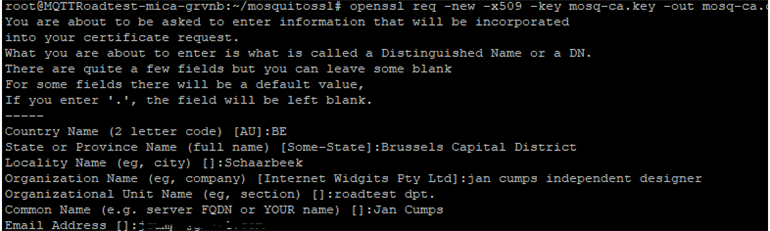
Create an X509 certificate that uses the private key generated in the previous step

openssl req -new -x509 -days 365 -key mosq-ca.key -out mosq-ca.crt
 

image


Create the MQTT Server Certificate.

openssl genrsa -out mosq-serv.key 2048

 

image


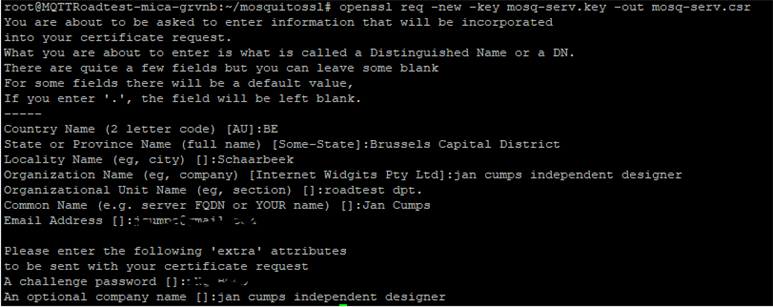
Next, create a CSR (Certificate Signing Request)

openssl req -new -key mosq-serv.key -out mosq-serv.csr
 

image


Now, make the certificate to use in our MQTT Mosquitto Server.

openssl x509 -req -in mosq-serv.csr -CA mosq-ca.crt -CAkey mosq-ca.key -CAcreateserial -out mosq-serv.crt -days 365 -sha256

image


Verify:

openssl x509 -in mosq-serv.crt -out readme.txt
cat readme.txt
rm readme.txt


Step 2, we configure the Mosquitto Server to Secure MQTT with the certificates.

Edit the Config file.


nano /etc/mosquitto/mosquitto.conf


Add these entries:

listener 8883
cafile /root/mosquittossl/mosq-ca.crt
certfile /root/mosquittossl/mosq-serv.crt
keyfile /root/mosquittossl/mosq-serv.key
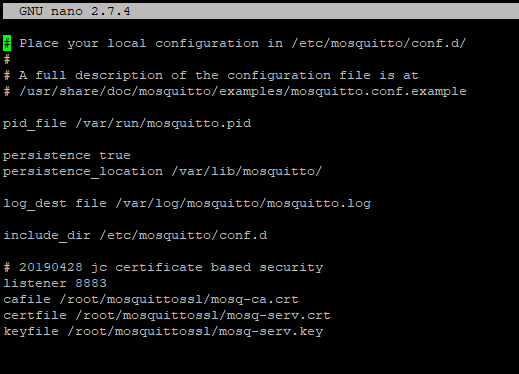
image

I think that the proper way to do this is to create an own config file in the /etc/mosquitto/conf.d directory. Comment below if you know it.


Next restart the server.

service mosquitto restart


The default unsecured listener in port 1883 is still running now. But we've added the secure service on 8883.

We'll refine later.


Step 3 is to download the certificates. In our case, you only need mosq-ca.crt.

You need to find a way to get the certificates that you need for client setup.

I installed the sFTP server for that.

apt install openssh-server
service ssh restart


you could also use the sdcard (check MICA's NAS Container documentation) or other file transfer options to move the certificate you need.


Step 4 is to test it from your pc, with the certificate.

The MQTT testbed I use to try out communication with certificates can be downloaded here: MQTT.fx .

Configure it as shown below, then connect.
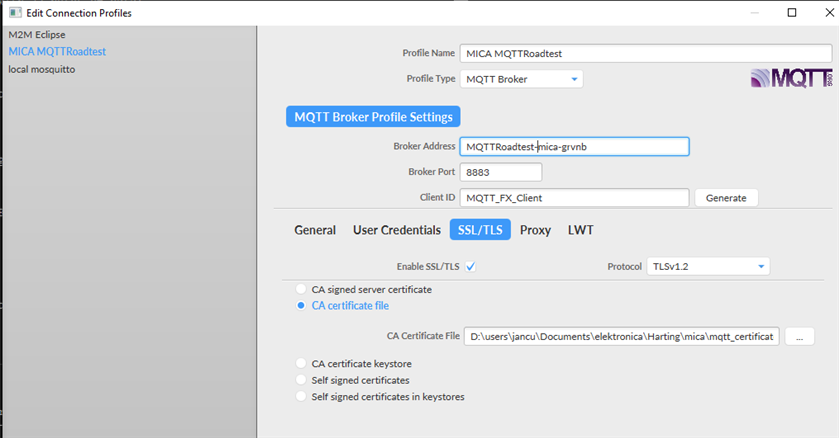
image

Subscribe to topic /TESTSecure. Then Publish to that same topic /TESTSecure with message Secure MQTT.

You should see the message arriving at the bottom of the window. It has gone via the MICA over secure communication.
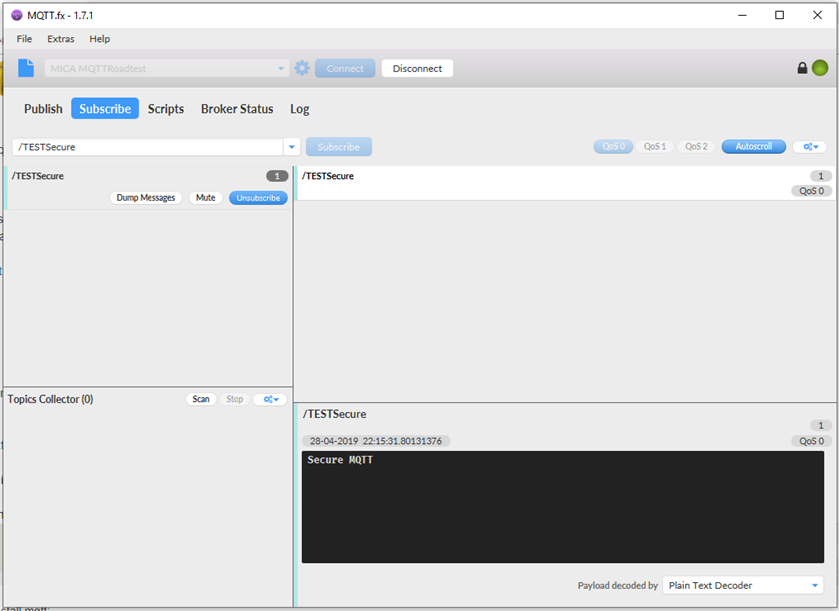
image


Step 5 is to revoke the unsecured 1883 listener.

Disable the 1883 port for anyone except the container itself.

edit the msquitto.conf file.

Add

listener 1883 localhost

before the 8883 listener.
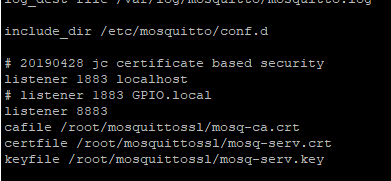
image

Restart the service.


Step 6 is to test with the NodeRed container with a self-made flow.

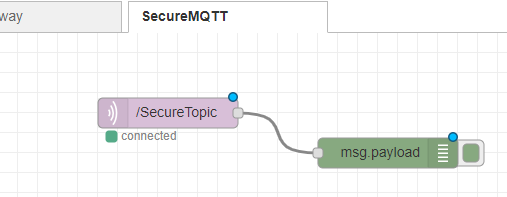
Create a new NodeRed process, with a MQTT and a Debug block:
 

image


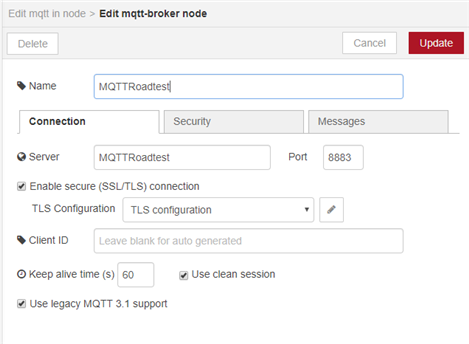
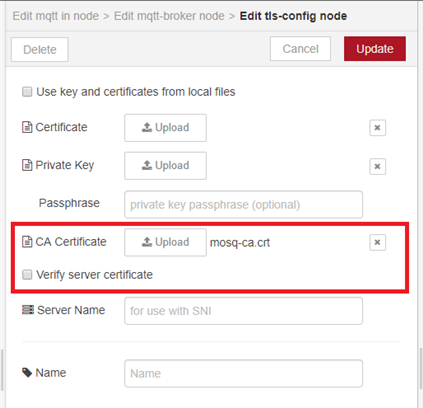
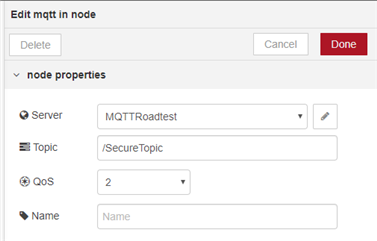
Edit the mqtt node. Replicate the settings as shown below:
 

image

image

image


Deploy, and then it's time to test.


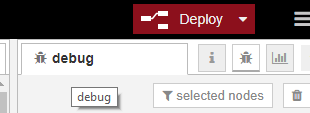
As a preparation, open the debug window in the Node Red editor:
image

You can use the Selected Node filter to only see debug messages for this flow. Do that in case you have the CISSGateway running - we don't want to see those messages now).


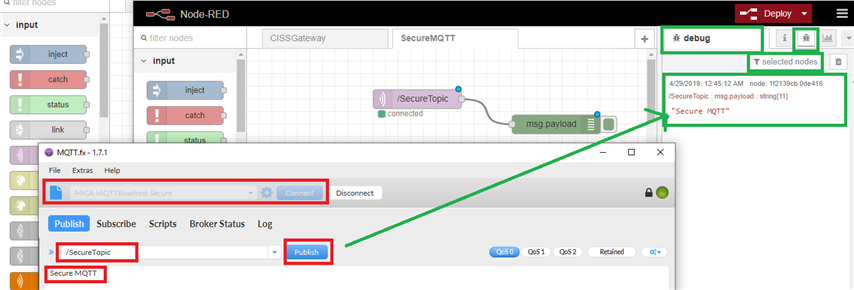
Use the same MQTT.fx connection we used before, but publish some message to the topic /SecureTopic (the same one used in the Node Red process).

Go back to the Node Red editor. You should see the message in the debug log:


image


The space occupied by the container, after installation and first start of the service:

 

image


Things for myself to consider later on:

  • create a non-root user for mqtt
  • what about certificate expiry?
  • investigate certificate validation
  • server keys and certificates should be stored in /etc/mosquitto/certs , only readable by mosquitto user
  • enable the ws listener


Thanks for reading. If you see flaws and mistakes, please comment.


Related Blog
HARTING MICA: Develop and Debug a C GPIO Example in Eclipse - Part 1: User Experience
HARTING MICA: Develop and Debug a C GPIO Example in Eclipse - Part 2: MICA Debian Stretch Setup
HARTING MICA: Develop and Debug a C GPIO Example in Eclipse - Part 3: Eclipse Configuration on Windows
HARTING MICA: Develop and Debug a C GPIO Example in Eclipse - Part 4: Build and Debug the GPIO Example
HARTING MICA: Make a Safe(r) MQTT Container with Certificate and TLS/SSL
HARTING MICA: Manage Access to USB and other Devices
HARTING MICA: SD Card as Shared Storage
HARTING MICA: Alpine Linux and another MQTT Container with Certificate and TLS/SSL
HARTING MICA: Connect to Amazon Web Services
HARTING MICA: Install Java 8 VM in a Debian Stretch Container
HARTING MICA: Read BOSCH CISS Sensor with Java - part 1: USB Connect and Listen
  • Sign in to reply

Top Comments

  • Jan Cumps
    Jan Cumps over 5 years ago +2
    The Harting MICA MQTT container version 2.5 allows to set up secure server from its management console. No need to create your own anymore. I like it when posts go obsolete because the supplier provides…
  • Jan Cumps
    Jan Cumps over 6 years ago in reply to Jan Cumps +1
    note to self: start a business providing production-ready safe containers for mqtt, node red and database. Get rich ... Live a luxury life ...
  • Jan Cumps
    Jan Cumps over 6 years ago in reply to Jan Cumps +1
    Answering my own question: The mica virtual machine mechanism seems to add containers to the /etc/hosts file ...
  • Jan Cumps
    Jan Cumps over 6 years ago in reply to Jan Cumps

    note to self: start a business providing production-ready safe containers for mqtt, node red and database. Get rich ...  Live a luxury life ...

    • Cancel
    • Vote Up +1 Vote Down
    • Sign in to reply
    • More
    • Cancel
  • Jan Cumps
    Jan Cumps over 6 years ago

    A first test with full secure flow from an external source (my laptop) sending data to MQTT server (on the MICA) over TSL,

    then Node-red (also running on the MICA) also securely subscribing to that same MQTT,

    and reporting received data to a new dashboard tab called RoadTest:

    image


    (edit: not full secure because the standard Node Red container is open. I can get at the editor and the dashboard without any authentication, and can send direct messages too)

    • Cancel
    • Vote Up 0 Vote Down
    • Sign in to reply
    • More
    • Cancel
  • DAB
    DAB over 6 years ago

    Good update Jan.


    DAB

    • Cancel
    • Vote Up 0 Vote Down
    • Sign in to reply
    • More
    • Cancel
  • Jan Cumps
    Jan Cumps over 6 years ago

    I tested if I could fool the system, by logging on without TLS, using a different certificate, ...


    tail -f /var/log/mosquitto/mosquitto.log


    1556540325: Client connection from 192.168.1.4 failed: error:1408F10B:SSL routines:ssl3_get_record:wrong version number.
    ....
    1556540325: New connection from 192.168.1.4 on port 8883.
    1556540325: OpenSSL Error: error:1408F10B:SSL routines:ssl3_get_record:wrong version number
    1556540325: Socket error on client <unknown>, disconnecting.
    ...
    1556540354: New connection from 192.168.1.4 on port 8883.
    1556540354: OpenSSL Error: error:14094416:SSL routines:ssl3_read_bytes:sslv3 alert certificate unknown
    1556540354: Socket error on client <unknown>, disconnecting.

    ...


    It looks like the security is working.

    • Cancel
    • Vote Up 0 Vote Down
    • Sign in to reply
    • More
    • Cancel
<
element14 Community

element14 is the first online community specifically for engineers. Connect with your peers and get expert answers to your questions.

  • Members
  • Learn
  • Technologies
  • Challenges & Projects
  • Products
  • Store
  • About Us
  • Feedback & Support
  • FAQs
  • Terms of Use
  • Privacy Policy
  • Legal and Copyright Notices
  • Sitemap
  • Cookies

An Avnet Company © 2026 Premier Farnell Limited. All Rights Reserved.

Premier Farnell Ltd, registered in England and Wales (no 00876412), registered office: Farnell House, Forge Lane, Leeds LS12 2NE.

ICP 备案号 10220084.

Follow element14

  • X
  • Facebook
  • linkedin
  • YouTube